TLDR: CRM and QuickBooks integration connects customer, deal, invoice, and payment records between a CRM and QuickBooks through a native connector, a middleware platform, or a custom API build. The connection removes double data entry and gives sales and accounting one verified record per customer.
What Is CRM and QuickBooks Integration
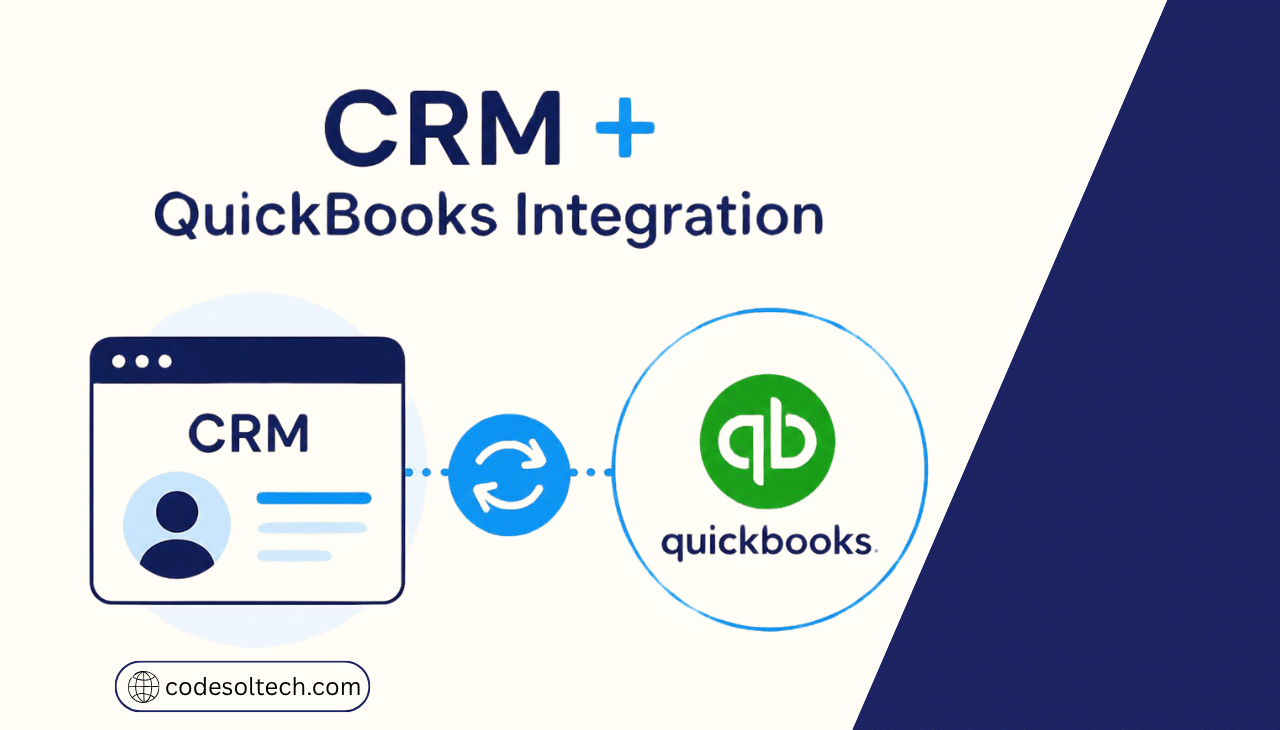
CRM and QuickBooks integration is an automated data exchange between a customer relationship management system and QuickBooks accounting software. The CRM stores leads, deals, and contact history. QuickBooks stores invoices, payments, and tax records.
The integration moves shared records between both systems on a schedule or a trigger. Every synced field has one owner and one direction.
Five record types sync in most projects:
- Customers and contacts
- Products and service items
- Estimates and quotes
- Invoices
- Payments
Sales teams work in the CRM. Accounting teams work in QuickBooks. The integration is the contract between them, and a clear CRM integration architecture defines the terms.
Business Impact of Disconnected CRM and QuickBooks Data
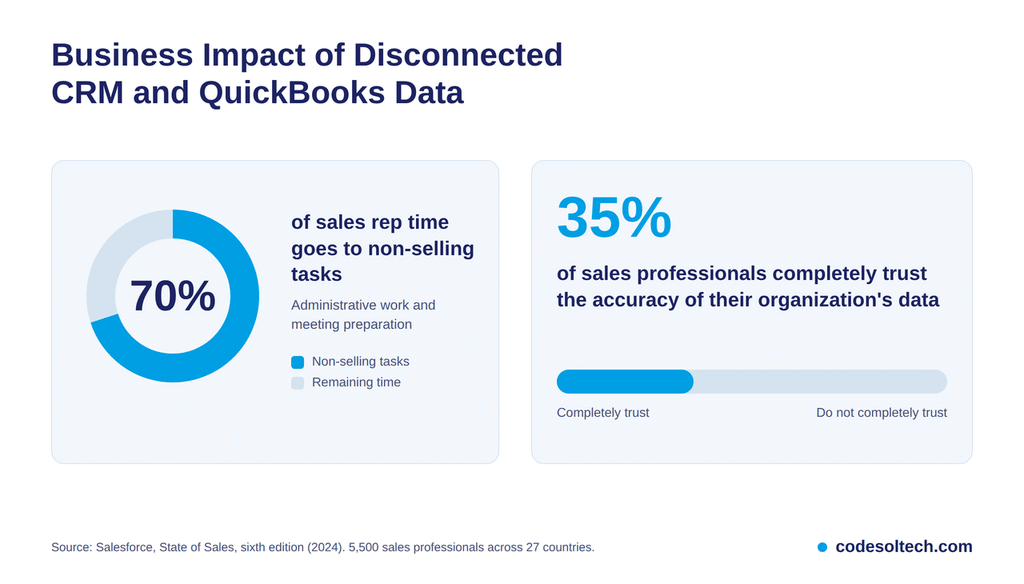
Salesforce’s sixth State of Sales report surveyed 5,500 sales professionals across 27 countries. Reps reported spending 70% of their time on non-selling tasks such as administrative work and meeting preparation.
The same report found that only 35% of sales professionals completely trust the accuracy of their organization’s data. Manual re-entry between a CRM and QuickBooks adds one more place for records to diverge.
Four costs appear when the two systems stay disconnected:
- Duplicate customer records in both systems
- Delayed invoices because job details are retyped
- Sales reps without visibility into payment status
- Pipeline and receivables reports that disagree
Fixing these four problems is the business case. The connector choice comes second, and clean records come first, as the guide on CRM data quality explains.
How Integration Changes the Invoice Workflow
Without integration, a closed deal triggers four manual steps: copy the customer, copy the job details, create the invoice, and update the CRM after payment.
With integration, the closed deal creates the customer and the invoice automatically. The CRM then receives the payment status from QuickBooks.
Which CRM and QuickBooks Integration Method Fits Your Business
Native connectors fit standard workflows, middleware fits multi-step automation, and custom API development fits unique business logic. Match the method to workflow complexity, not to price alone.
Native Connectors
A native connector is a prebuilt integration that a CRM or accounting vendor publishes. It installs in minutes and covers common objects such as customers and invoices. Field-level control stays limited.
Middleware and iPaaS Platforms
Middleware sits between both applications and translates data through triggers, filters, and field maps. Zapier, Make, Celigo, and Workato are four common platforms. An administrator monitors failed runs and maintains the mappings.
Custom API Development
Custom development connects directly to the CRM API and the QuickBooks Online REST API. It handles unusual rules such as job-based billing or multi-entity accounting. Your team owns testing, versioning, and upgrades.
| Method | Best for | Control | Maintenance owner |
|---|---|---|---|
| Native connector | Standard workflows | Low | Vendor |
| Middleware | Multi-step automation | Medium | Your administrator |
| Custom API | Unique business logic | High | Your developer |
Businesses with unique billing rules evaluate custom CRM development and CRM API integration before they commit to a connector.
How Does the QuickBooks Online API Sync Data
The QuickBooks Online API syncs data through authenticated REST calls, webhook notifications, and change data capture queries.
An integration authenticates with OAuth 2.0, reads or writes entities such as Customer and Invoice, and scopes every call to a realm ID, which identifies one QuickBooks company.
OAuth 2.0 Authentication
Intuit requires OAuth 2.0 authorization for API access. Access tokens expire after 60 minutes, so the integration refreshes them before each expiry.
An expired or revoked refresh token returns an invalid_grant error. The user then reauthorizes the connection.
API Rate Limits
Intuit throttles QuickBooks Online REST calls at 500 requests per minute per realm ID. Requests above the limit return an HTTP 429 error, so a bulk initial sync queues and paces its calls.
| Limit type | Value |
|---|---|
| Standard requests | 500 per minute per realm ID |
| Burst rate | 10 requests per second per realm ID and app |
| Batch endpoint | 40 batch requests per minute per realm ID and app |
| Request timeout | 120 seconds |
| Builder tier allowance | 500,000 CorePlus API calls per workspace per month |
Source: Intuit Developer, API call limits and throttles.
Webhooks and Change Data Capture
Webhooks notify the integration when a subscribed entity changes in a connected QuickBooks company. Intuit instructs developers to avoid complex processing inside the webhook endpoint.
Change data capture (CDC) returns every entity that changed within a 30-day look-back window, up to 1,000 objects per response. Intuit documents a daily CDC call as the safeguard against missed webhook events.
A unique request ID on each write call prevents duplicate invoices during retries. The API returns the original response when it receives a repeated request ID.
How to Integrate QuickBooks Desktop with a CRM
QuickBooks Desktop integrates through the QuickBooks Web Connector, a Windows application that polls a SOAP web service and exchanges qbXML messages with the company file. The Web Connector starts every exchange.
The architecture differs from QuickBooks Online in four ways:
| Factor | QuickBooks Online | QuickBooks Desktop |
|---|---|---|
| Protocol | REST with JSON | SOAP with qbXML |
| Authentication | OAuth 2.0 | Web Connector credentials |
| Change detection | Webhooks and CDC | Scheduled polling |
| Runtime | Intuit cloud | Windows machine with the company file |
The Windows machine that hosts the company file must stay online during each sync. Two failures appear most often:
- Workstation sleep or shutdown halts the poll
- A dropped VPN connection cuts remote access to the file
Hosting QuickBooks Desktop on an always-on server removes the workstation dependency.
Data Mapping Rules for CRM and QuickBooks
Data mapping defines which CRM field writes to which QuickBooks field. Every mapped field has one owner, one direction, and one conflict rule.
| CRM object | QuickBooks entity | Owner | Direction |
|---|---|---|---|
| Account or contact | Customer | CRM | CRM to QuickBooks |
| Product or service | Item | QuickBooks | QuickBooks to CRM |
| Quote or won deal | Estimate or Invoice | CRM creates | CRM to QuickBooks |
| Invoice status | Invoice | QuickBooks | QuickBooks to CRM |
| Payment | Payment | QuickBooks | QuickBooks to CRM |
Name normalization happens before the first sync. “Acme LLC” and “ACME, LLC” create duplicate customers when the tool matches by name. Clean customer names, tax codes, and item names first, then plan any CRM data migration around the cleaned set.
One-Way vs Two-Way Sync
One-way sync pushes customers and invoices from the CRM to QuickBooks. Two-way sync also returns invoice status and payments to the CRM.
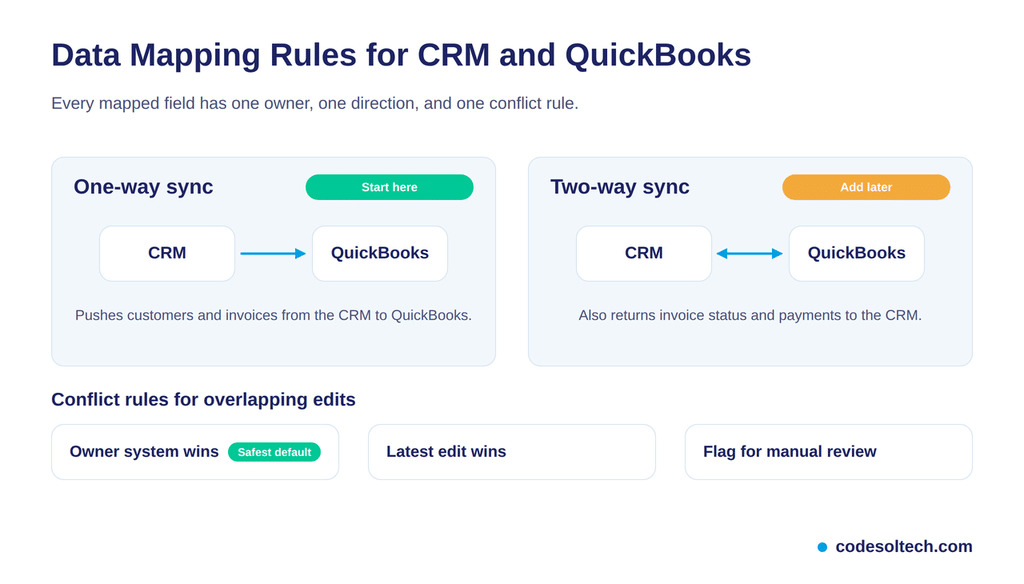
Two-way sync requires conflict rules, because both systems edit shared records. Start one-way, then add the return flow after the first reconciliation passes.
Three conflict rules resolve overlapping edits:
- Owner system wins
- Latest edit wins
- Flag the record for manual review
Owner system wins is the safest default, because it keeps one source of truth per field.
Step-by-Step CRM and QuickBooks Integration Process
The integration follows seven steps in a fixed order:
- Define the business outcome, such as faster invoicing.
- Assign one data owner to each record type.
- Choose native, middleware, or custom API.
- Clean customer, item, and tax data.
- Build field maps and conflict rules.
- Test in a QuickBooks sandbox company.
- Deploy and monitor the sync logs.
Teams that connect more than two systems extend this sequence with workflow automation for approvals and alerts.
Testing and Monitoring the Integration
Test failure scenarios, not only clean records. Run five edge cases in a sandbox before launch:
- An invoice edited after sync
- A voided or reversed payment
- A customer renamed in the CRM
- A duplicate customer record
- A bulk push that exceeds 500 requests per minute
The Intuit sandbox caps outbound emails at 40 per day per realm, so email-triggering tests need planning. Review sync logs weekly. Assign an owner to the exception queue, and reconcile invoice totals between both systems at month-end.
Common Errors and Fixes
| Symptom | Cause | Fix |
|---|---|---|
| HTTP 429 error | Calls exceed 500 per minute | Queue calls and add exponential backoff |
| invalid_grant error | Expired or revoked refresh token | Reauthorize the connection |
| Duplicate customers | Name-based matching | Match on a unique ID |
| Duplicate invoices | Retry without a request ID | Send a unique request ID per write |
| Missed updates | Dropped webhook events | Run a daily CDC call |
Security and Access Control for Integrated Systems
An integration creates a pathway between customer data and financial data. Each pathway needs an access policy.
Four controls protect the connection:
- Least-privilege permissions for the integration user
- Encrypted storage for OAuth tokens and client secrets
- Immediate access revocation for departed staff
- Audit logs for every create, update, and delete call
Review these controls each quarter. A permission change in either system alters what the sync reads and writes.
Final Words
CRM and QuickBooks integration removes double entry and gives sales and accounting one customer record. Choose the method by workflow complexity. Define field ownership before the first sync runs.
Test the ugly cases. Monitor the logs every week without exception. A maintained integration stays accurate, and an unmonitored one drifts.
Need your CRM connected to QuickBooks? Talk to the CodeSol team about a custom integration.
You May Like
AI CRM Automation Workflows: 7 Types, Setup & Metrics
Conversational AI in CRM: Stop Typing, Start Talking [2026]
Thanks for Reading 🙂