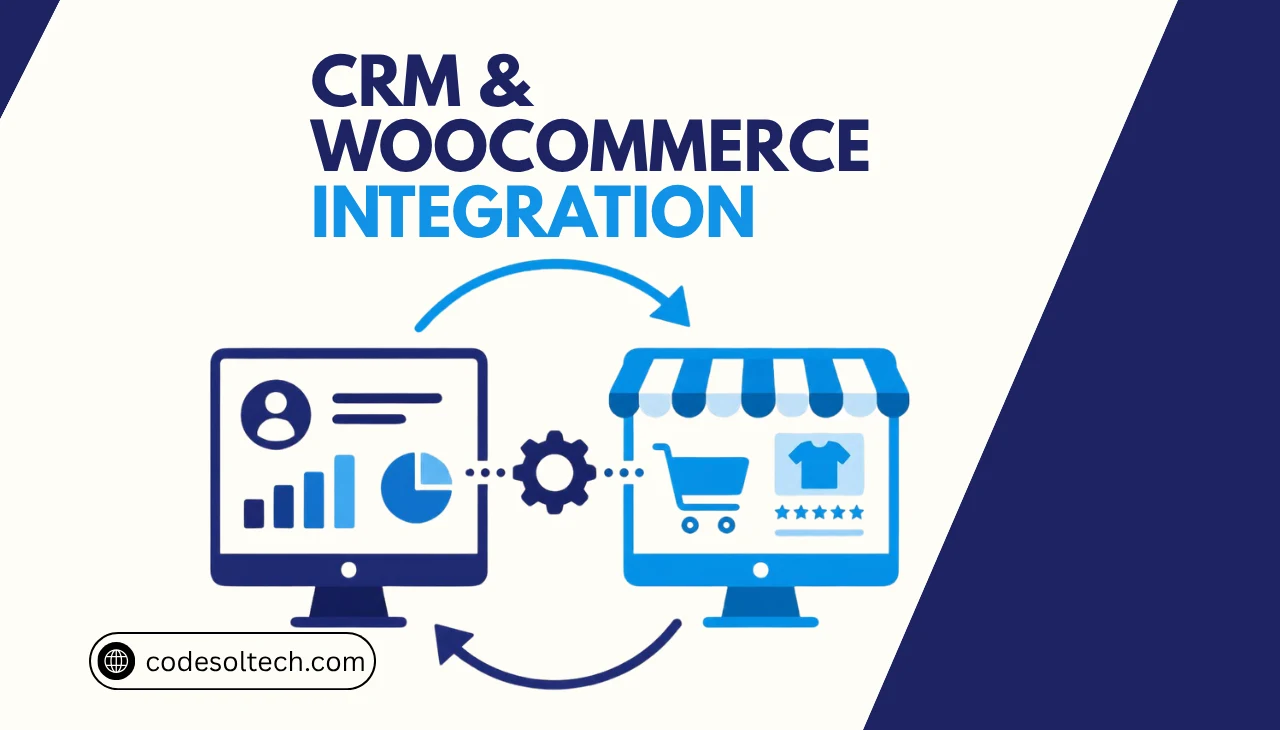
TLDR: CRM & WooCommerce integration connects a WooCommerce store to a CRM so customer, order, and product data sync automatically. The link runs through the WooCommerce REST API and webhooks. It removes manual exports, builds one customer record, and triggers follow-up automations after every purchase.
What Is CRM + WooCommerce Integration
CRM + WooCommerce integration is a data connection between a WooCommerce store and a customer relationship management platform. It moves customer, order, product, and coupon records between both systems without manual exports.
WooCommerce runs on WordPress and stores orders and customers in its own database. A CRM such as HubSpot, Salesforce, or Zoho stores deal stages and support history. Integration joins both into one customer view.
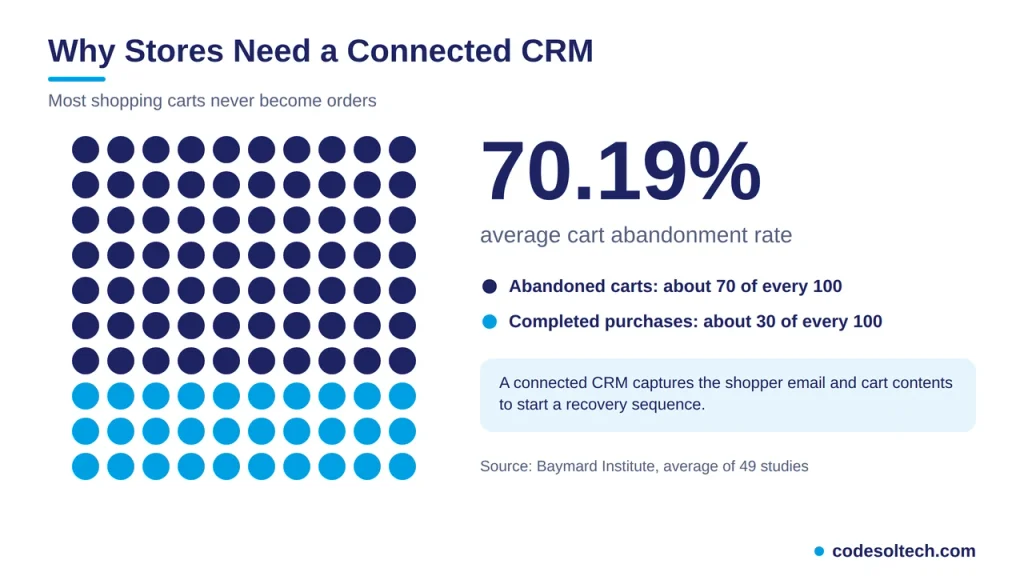
The business case starts with lost carts. The Baymard Institute documents an average cart abandonment rate of 70.19% across 49 studies. A connected CRM captures the shopper’s email and cart contents, then starts a recovery sequence.
A connected store delivers 4 outcomes:
- One customer record combines purchase history, sales notes, and support tickets.
- Order events trigger emails, tasks, and deal-stage changes automatically.
- Segments update from real spending data instead of manual lists.
- Support agents see order status inside the contact record.
How Does Data Flow Between WooCommerce and a CRM
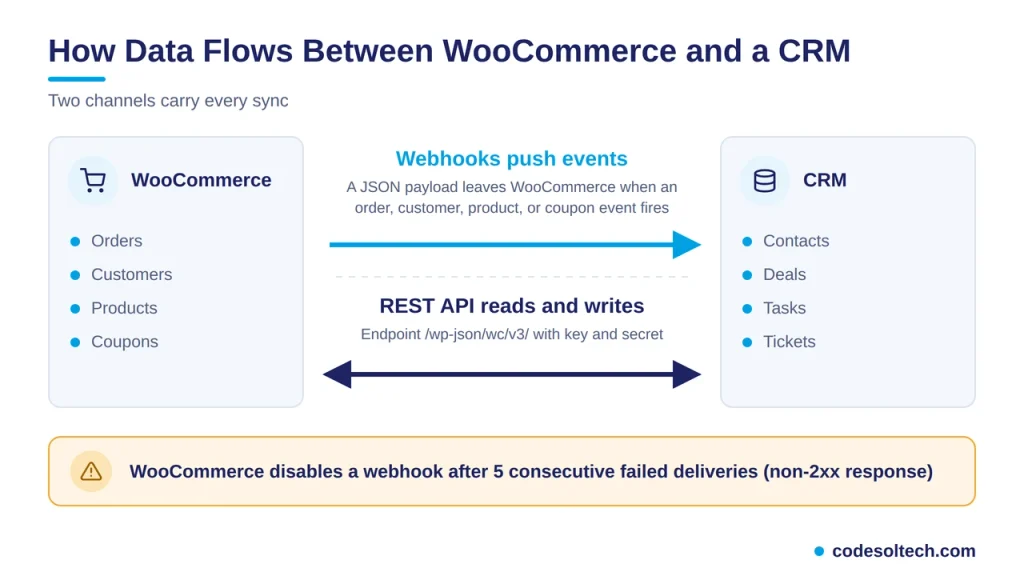
Data moves through 2 channels. Webhooks push events out of WooCommerce, and the REST API reads and writes records on demand. Most production integrations use both channels together.
Webhooks Push Events in Real Time
A WooCommerce webhook sends a JSON payload to a destination URL when an event fires, such as order creation or a customer update. For coupons, customers, orders, and products, the payload matches the REST API response exactly.
WooCommerce disables a webhook after 5 consecutive failed deliveries, meaning any non-2xx response. A disabled webhook stops syncing until an administrator re-enables it through the REST API.
Administrators create webhooks under WooCommerce > Settings > Advanced > Webhooks. Each webhook binds to one topic, such as Order created or Customer updated.
The REST API Reads and Writes Records
The WooCommerce REST API lives under /wp-json/wc/v3/ and returns JSON. It exposes products, orders, customers, coupons, refunds, shipping zones, and reports.
Authentication uses a consumer key and consumer secret through HTTP Basic Auth or OAuth 1.0a. Each key carries read, write, or read/write permission.
The CRM calls the API to back-fill historical orders and to write data back, such as an order note or a customer tag.
Field Mapping Decides Data Quality
Field mapping assigns each WooCommerce field to a CRM property. Billing email maps to contact email, order total maps to deal amount, and order status maps to deal stage.
Email address serves as the unique key for deduplication. A mismatch on this key creates duplicate contacts and corrupts revenue reports. Review the CRM data quality guide before the first sync.
One-Way and Two-Way Sync Serve Different Goals
One-way sync copies WooCommerce data into the CRM. It suits reporting, segmentation, and automation triggers, and it carries the lowest risk of data conflicts.
Two-way sync also writes CRM changes back to WooCommerce, such as an updated phone number or a customer note. It requires a conflict rule that names one system as the source of truth for each field.
WooCommerce stays the source of truth for orders, prices, and stock. The CRM stays the source of truth for lead status and sales notes.
WooCommerce Data Objects and Their CRM Counterparts
Each WooCommerce object has a matching CRM object. The table below lists the 5 standard pairs and the event that triggers each sync.
| WooCommerce Object | CRM Object | Sync Trigger |
|---|---|---|
| Customer | Contact | Customer created or updated |
| Order | Deal or order record | Order created or status changed |
| Product | Product or line item | Product created or updated |
| Coupon | Custom property or campaign tag | Coupon applied at checkout |
| Refund | Deal adjustment or note | Order refunded |
WooCommerce ships with 7 default order statuses: pending payment, processing, on hold, completed, cancelled, refunded, and failed. Each status maps to exactly one CRM deal stage.
Map processing to a “won, awaiting fulfillment” stage and completed to “won, delivered.” Map failed and pending payment to an open recovery stage so the sales team follows up.
Which Integration Method Fits Your Store
Standard sync needs fit a native connector or an iPaaS platform. Custom logic, two-way sync, and strict error handling need a webhook and REST API build.
| Method | How It Works | Best For | Maintenance Owner |
|---|---|---|---|
| Native plugin connector | A vendor plugin installs in WordPress and syncs predefined fields | Contact and order sync with default mapping | Plugin vendor |
| iPaaS (Zapier, Make) | Visual workflows trigger on WooCommerce events | Multi-app workflows without code | Your team, plus subscription limits |
| Custom webhook and REST API build | A developer builds middleware with retries and logging | Complex mapping and two-way sync | Your developer |
Native connectors deploy fastest. Custom builds give full control over field mapping, retry logic, and error logs.
Stores that need tailored sync logic benefit from custom CRM development paired with WooCommerce development.
Core Automations a Connected Store Runs
Integration pays off through automation. These 4 workflows deliver the fastest return on a WooCommerce and CRM connection:
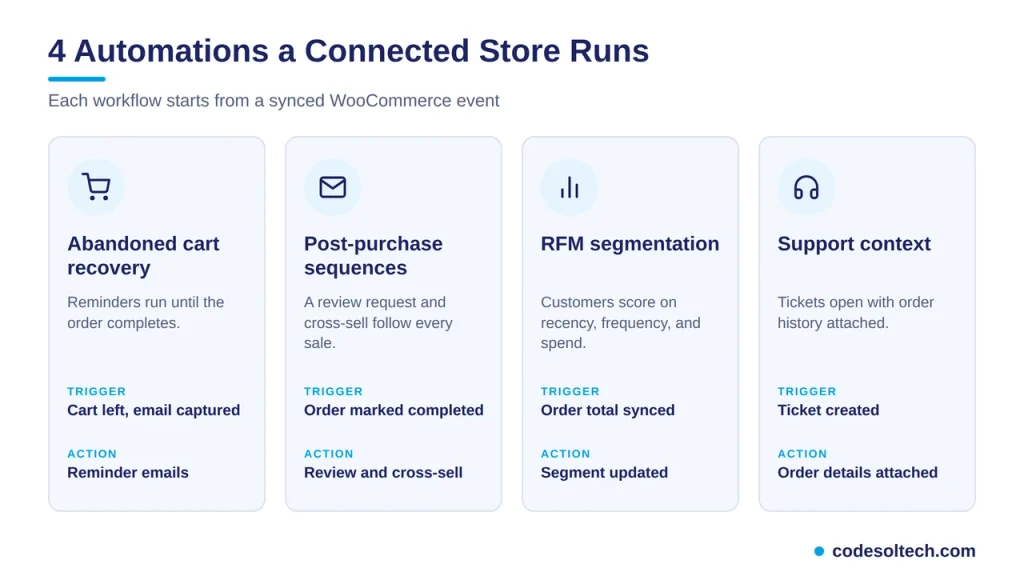
- Abandoned cart recovery: The CRM receives the shopper email and cart items, then sends a reminder sequence until the order completes.
- Post-purchase sequences: A completed order triggers a review request and a cross-sell email based on the purchased product category.
- RFM segmentation: The CRM scores each customer on recency, frequency, and monetary value from synced order totals.
- Support context: A ticket opens with order history, refund status, and shipping details already attached.
Each workflow depends on clean order data. Broken status mapping sends the wrong email to the wrong customer.
Implementation Steps for CRM + WooCommerce Integration
A standard rollout follows 6 steps in this order:
- Audit existing data. List every customer field, remove duplicate emails, and standardize country and phone formats.
- Select the method. Choose a native connector, an iPaaS, or a custom build based on mapping complexity.
- Generate API keys. Create a read/write key under WooCommerce > Settings > Advanced > REST API and store it in a secrets manager.
- Create webhooks. Register topics for order created, order updated, and customer created, all pointing to an HTTPS endpoint.
- Map fields and statuses. Assign each WooCommerce field to a CRM property and each order status to a deal stage.
- Test, then go live. Place 10 test orders on a staging site, verify every CRM record, then enable production sync.
The same architecture applies across platforms. Compare it with the CRM + Shopify integration and the CRM + QuickBooks integration guides.
Security Rules for the Integration Layer
The integration layer handles customer names, emails, and order values. Four controls protect that data:
- Serve every endpoint over HTTPS.
- Issue API keys with the lowest permission the CRM needs.
- Verify the webhook signature header on every incoming payload.
- Rotate consumer keys on a fixed schedule and after any staff change.
Common Failure Points and Fixes
HPOS Compatibility Breaks Old Connectors
WooCommerce 8.2, released in October 2023, enabled High-Performance Order Storage (HPOS) by default for new installations. HPOS stores orders in dedicated tables instead of the wp_posts table.
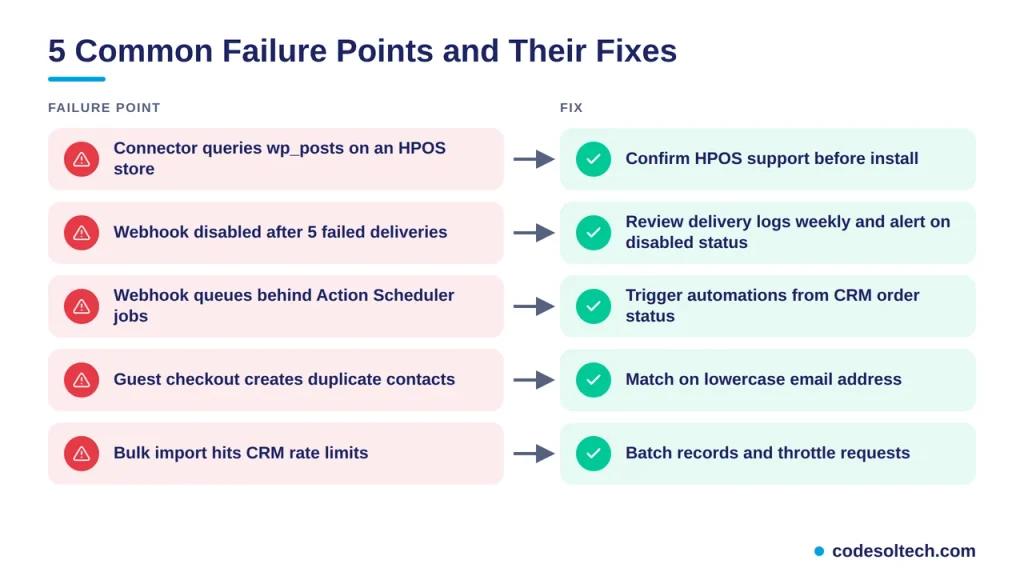
Connectors that query wp_posts directly return empty order lists on HPOS stores. Confirm that the plugin declares HPOS compatibility before installation.
Disabled Webhooks Stop Sync Silently
Five failed deliveries disable a webhook. Check the delivery logs weekly and alert on any webhook with a disabled status.
Background Jobs Delay Webhook Delivery
WooCommerce processes background tasks through the Action Scheduler library. Webhook deliveries queue behind other scheduled actions on busy stores, so a sync arrives seconds or minutes after the order.
Design CRM automations to tolerate that delay. Trigger an email from the order status in the CRM, never from the clock time of the purchase.
Guest Checkout Creates Duplicate Contacts
Guest buyers carry no WooCommerce customer ID. Match on lowercase email address so repeat guest orders attach to one CRM contact.
Bulk Imports Hit CRM Rate Limits
Historical order back-fills send thousands of API calls. Batch the import into small groups and throttle requests to stay under the CRM rate limit.
KPIs That Measure Integration Success
Track 5 metrics after launch to confirm the integration delivers value:
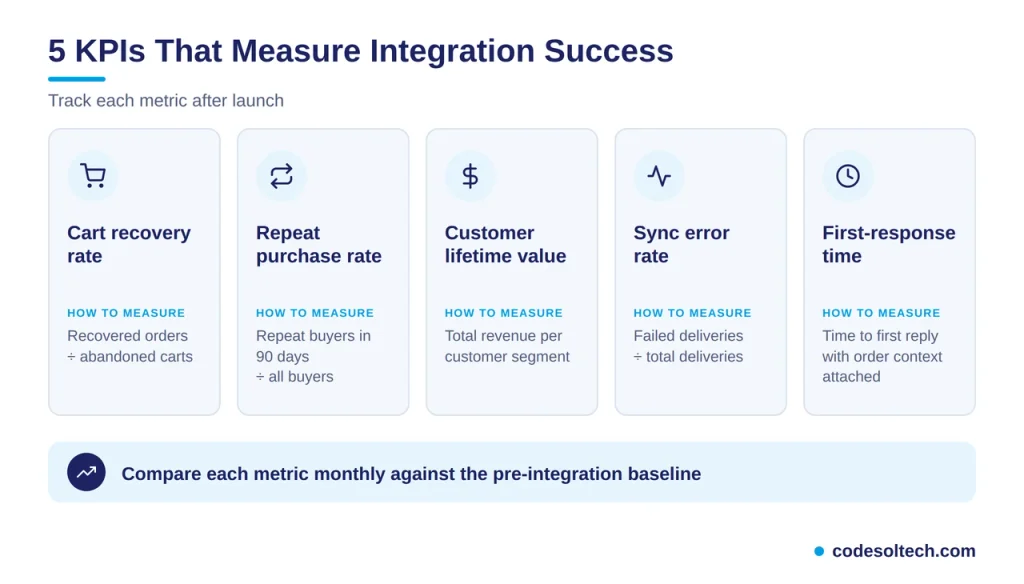
- Cart recovery rate, measured as recovered orders divided by abandoned carts.
- Repeat purchase rate across a 90-day window.
- Customer lifetime value per segment.
- Sync error rate, measured as failed deliveries divided by total deliveries.
- Support first-response time with order context attached.
Review these metrics monthly against the pre-integration baseline. A falling sync error rate with a rising cart recovery rate confirms the data flow works.
Final Words
CRM + WooCommerce integration turns order data into customer relationships. Webhooks deliver events, the REST API fills gaps, and field mapping protects data quality.
Choose the method that matches your logic, test with real orders, and review delivery logs every week.
A connected store sells with context, not guesswork. Every order then feeds the next campaign.
Ready to connect WooCommerce to your CRM? Book a free consultation with CodeSolTech and get a mapped, tested integration plan for your store.