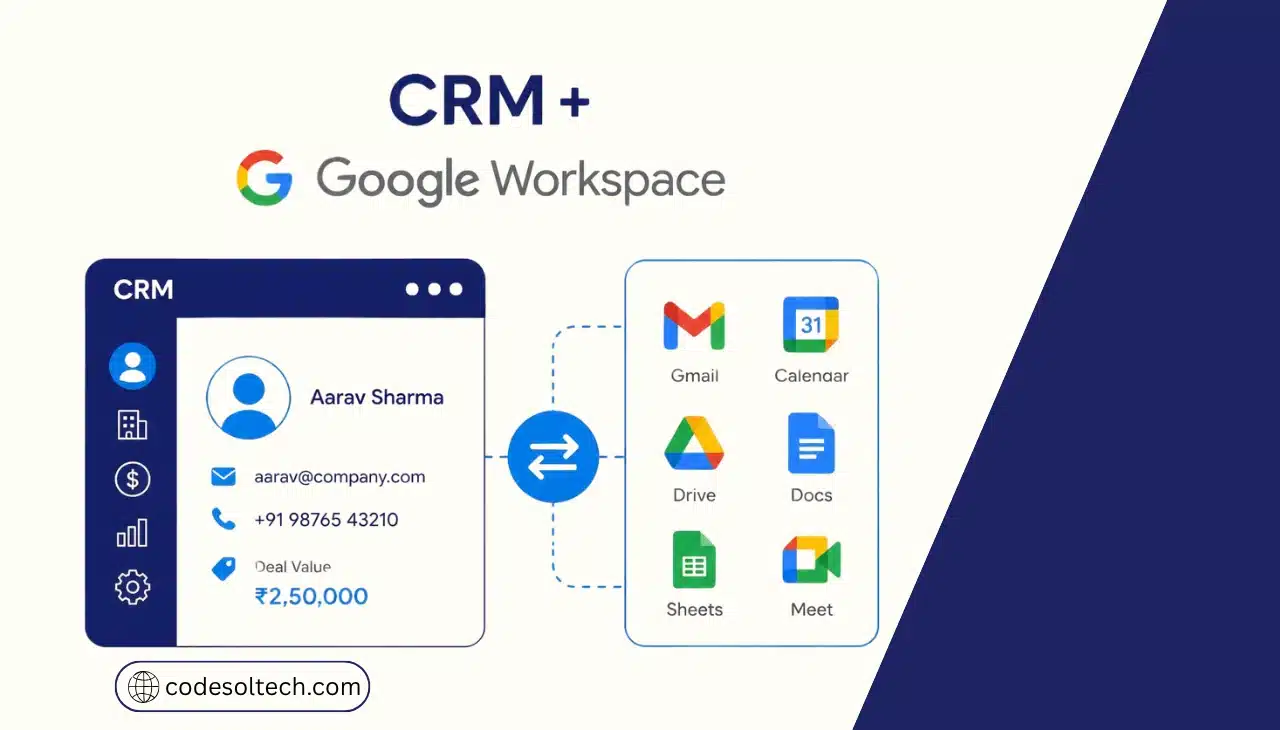
CRM + Google Workspace integration connects your CRM to Gmail, Google Calendar, Google Drive, and Google Sheets through OAuth 2.0 and Google APIs. It logs emails, meetings, and files on the right customer record automatically, so your team stops typing activity notes by hand.
CRM + Google Workspace Integration Defined
CRM & Google Workspace integration is a data connection between a customer relationship management system and Google’s productivity apps. It runs through Google Workspace APIs and authenticates users with OAuth 2.0.
A complete setup covers 5 Workspace apps: Gmail, Google Calendar, Google Drive, Google Sheets, and Google Contacts. Each app writes to a specific CRM object, such as an activity, a contact, or a document link.
Every integration contains 4 components:
- Authentication layer: OAuth 2.0 grants the CRM scoped access to each user’s Google data.
- API layer: The Gmail, Calendar, Drive, Sheets, and People APIs expose the data.
- Sync engine: A scheduler or push listener moves changes between both systems.
- Mapping layer: Field rules match Google data to CRM records by email address.
These 4 components determine cost, security, and reliability. The rest of this guide explains how to configure each one.
Why Does CRM & Google Workspace Integration Matter
It returns selling time to your sales team by removing manual data entry. Salesforce’s State of Sales research reports that reps spend only 28% of their week selling.
Deal management and data entry consume most of the remaining time. The same research reports that 66% of reps feel overwhelmed by the number of tools they use.
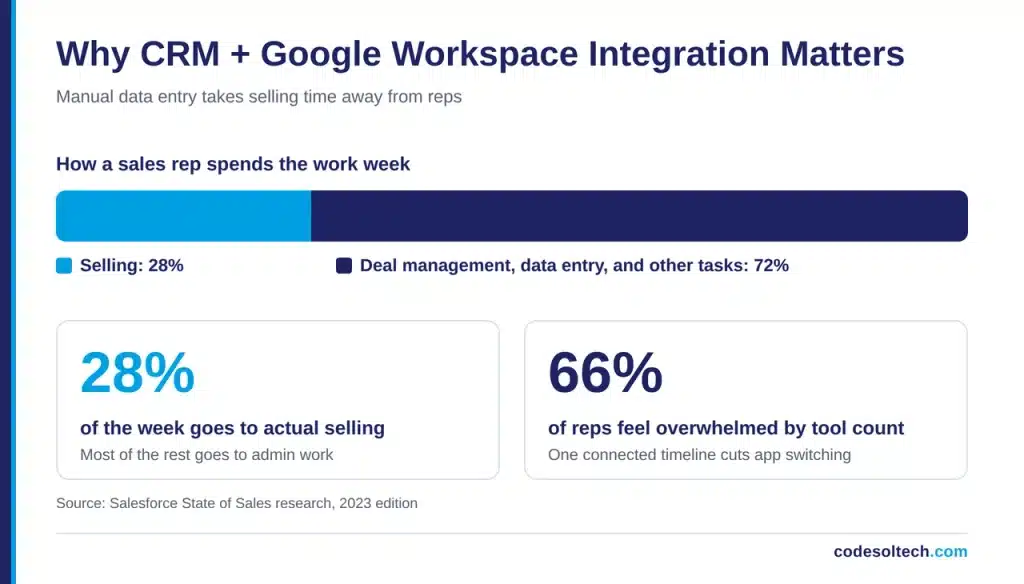
A Workspace integration attacks both problems. Email and meeting activity logs without rep input, and reps work from one customer timeline instead of switching between apps.
The integration delivers 3 measurable outcomes:
- Complete timelines: Every email thread and meeting attaches to the contact record.
- Cleaner data: Email-based matching prevents duplicate contacts and orphan activities.
- Faster handoffs: Account managers read the full history before the first call.
Clean matching depends on strong data rules, which our CRM data quality guide covers in detail.
What Data Syncs Between a CRM and Google Workspace
A CRM syncs 5 data types with Google Workspace: emails, calendar events, contacts, files, and spreadsheet rows. The table below maps each Workspace app to its API and CRM object.
| Workspace App | Google API | CRM Object | Typical Direction |
|---|---|---|---|
| Gmail | Gmail API | Email activity on a contact | Workspace to CRM, plus send from CRM |
| Google Calendar | Calendar API | Meeting activity | Two-way |
| Google Contacts | People API | Contact record | Two-way |
| Google Drive | Drive API | Attached document link | Workspace to CRM |
| Google Sheets | Sheets API | Reports and bulk imports | CRM to Sheets |
Email and calendar data produce the highest change volume. Contacts and files change less often and need a lower sync frequency.
Define a sync direction for every object before you configure the connector. One-way sync protects the source of truth, and two-way sync requires conflict rules that decide which system wins.
Bulk imports follow the same mapping discipline as a CRM data migration. Map every field once, then test the mapping on a sample of 100 records.
Which Integration Method Fits Your Business
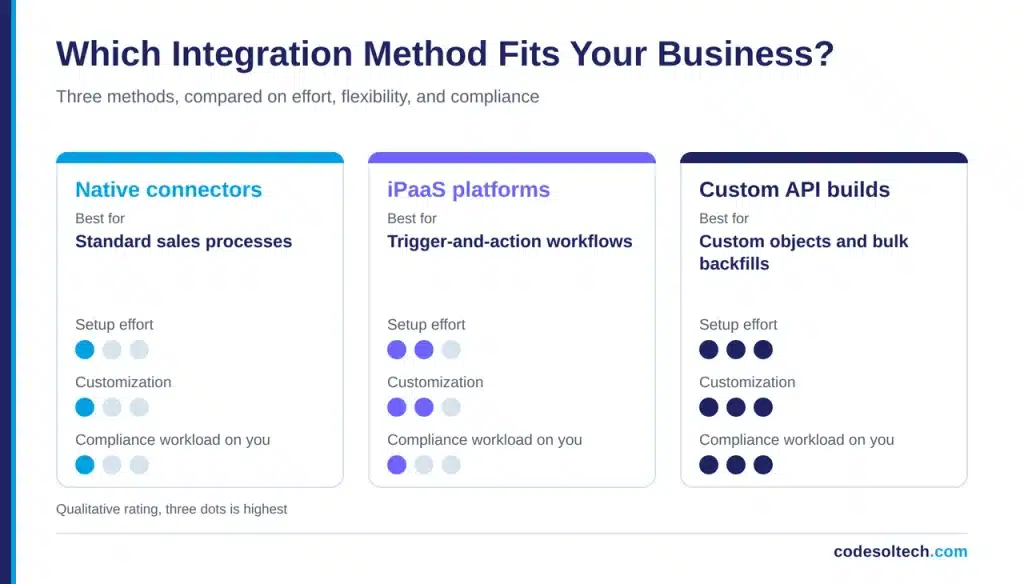
Three methods exist: native connectors, iPaaS platforms, and custom API builds. Native connectors fit standard needs, and custom builds fit proprietary workflows.
Native Connectors
A native connector ships inside the CRM and installs from the CRM’s app marketplace. It handles Gmail and Calendar sync with fixed field mappings and no engineering work.
Native connectors limit custom objects and complex routing rules. They suit teams with standard sales processes and no custom data models.
iPaaS Platforms
iPaaS (integration platform as a service) tools such as Zapier and Make connect Google Workspace to a CRM through trigger-and-action workflows. A new calendar event triggers a CRM update.
These platforms bill per task, so cost rises with sync volume. Debugging also spreads across 3 systems: the iPaaS, the CRM, and Google.
Custom API Builds
A custom build calls the Google APIs directly and writes to the CRM through its REST API. This method supports custom objects, bulk backfills, and role-based sync rules.
It also carries the full compliance workload, including OAuth verification. CodeSol Technologies delivers these builds through its custom CRM development service.
Select a method using 3 criteria: sync volume, workflow complexity, and compliance scope. High volume and custom objects point to a custom build.
How Does the Technical Architecture Work
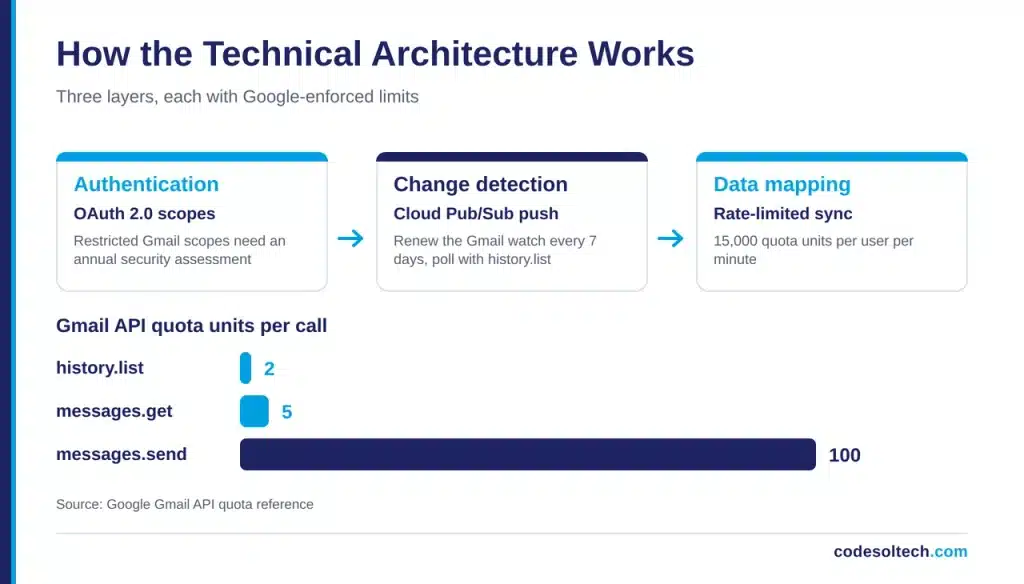
The architecture has 3 layers: authentication, change detection, and rate-limited data mapping. Each layer carries its own failure modes and Google-enforced limits.
OAuth 2.0 and Scope Selection
Google classifies API scopes into 3 tiers: non-sensitive, sensitive, and restricted. Gmail scopes that read mail content, such as gmail. readonly and gmail.modify, fall into the restricted tier.
Apps that request restricted scopes and reach data through a third-party server complete an annual security assessment from a Google-approved assessor. Google’s restricted scope verification policy standardizes this review on the CASA framework.
Request the narrowest scope that supports the feature. A send-only integration needs Gmail. Send, which sits in the sensitive tier rather than the restricted tier.
Companies that build a CRM for their own Workspace domain use a service account with domain-wide delegation. A Workspace administrator authorizes the account once, and users never see a consent screen.
Push Notifications vs. Polling
Gmail delivers change events through Cloud Pub/Sub, not direct webhooks. Google’s push notification guide requires you to call the watch method at least every 7 days, or updates stop for that user.
Polling fills the gaps between notifications. The history. list method retrieves mailbox changes since a stored historyId and costs 2 quota units per call.
Rate Limits and Quota Math
The Gmail API caps usage at 1,200,000 quota units per minute per project and 15,000 units per minute per user. Each message. get call costs 5 units, and each message send call costs 100 units, per the Gmail API quota reference.
That math yields 3,000 message reads or 150 sends per user per minute. Eighty users running at the per-user limit exhaust the project cap.
Throttle historical backfills and queue writes with exponential backoff. A backfill that ignores quota returns rateLimitExceeded errors and stalls the sync.
Which Teams Gain the Most From the Integration
Four teams gain the most: sales, customer support, operations, and finance. Each team uses a different slice of the 5 synced data types.
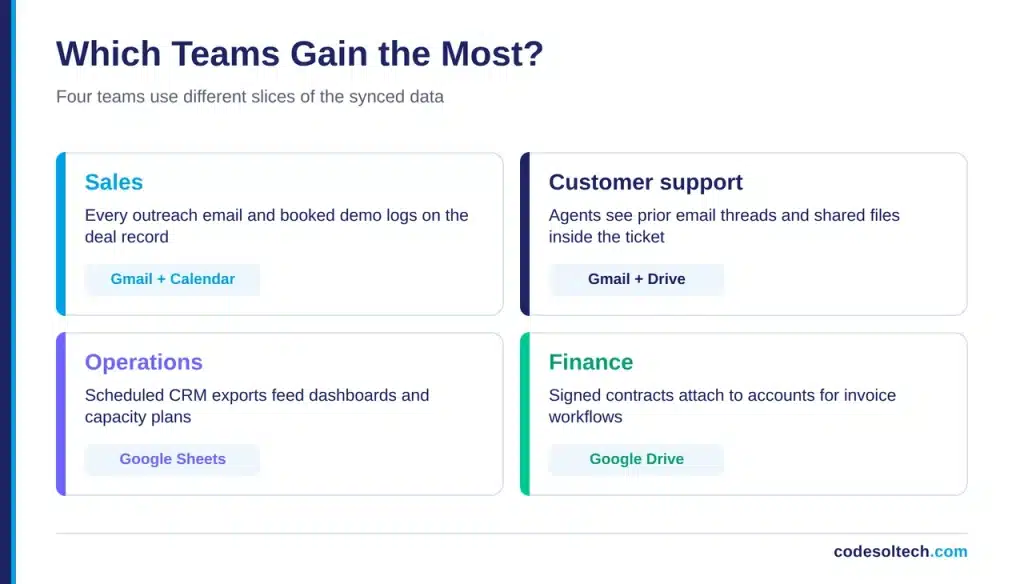
- Sales: Gmail and Calendar sync log every outreach email and booked demo on the deal record.
- Customer support: Support agents see prior email threads and shared Drive files inside the ticket.
- Operations: Google Sheets receives scheduled CRM exports for dashboards and capacity planning.
- Finance: Drive links attach signed contracts to accounts, which pairs with CRM + QuickBooks integration for invoice workflows.
Companies on Microsoft tools follow the same pattern with different APIs. Read our CRM + Microsoft 365 integration guide for that stack.
Security and Compliance Rules
A Workspace integration touches customer email, so security controls decide whether the project passes review. Apply these 4 rules from day one:
- Least privilege: Request only the scopes each feature needs.
- Encrypted token storage: Store refresh tokens in an encrypted vault, never in plain database columns.
- Admin control: A Workspace administrator approves the app in the Admin console before users connect.
- Deletion on request: Delete a user’s synced Google data when the user revokes access.
Google’s policy requires restricted-scope apps to meet the Limited Use requirements for user data. Document your data handling in a privacy policy before you submit for verification.
Implementation Roadmap
Follow these 6 steps to deploy the integration:
- Audit data: List every email, calendar, and file workflow your team runs today.
- Pick a method: Match native, iPaaS, or custom build to your volume and compliance scope.
- Configure access: Create the Google Cloud project, enable the APIs, and set up the OAuth consent screen.
- Map fields: Match Google data to CRM objects by email address.
- Pilot with 10 users: Run the sync for 2 weeks and log every error.
- Scale and monitor: Roll out to all users and alert on sync failures.
Fix every mapping error found during the pilot before you roll out to all users. Every connected system follows the same design pattern. Our CRM integration architecture guide documents the shared blueprint.
Common Failure Points
Four failures cause most broken Workspace syncs:
- Expired Gmail watch: A missed 7-day renewal silently stops email sync.
- Name-based matching: Matching on names creates duplicate contacts, so match on email address.
- Over-broad scopes: Requesting full mailbox access triggers restricted-tier review for features that do not need it.
- Unthrottled backfills: Bulk historical imports exhaust the 15,000-unit-per-user-minute cap.
Each failure has a fixed prevention rule. Monitoring catches the rest before reps notice missing data.
Final Words
CRM + Google Workspace integration turns inboxes and calendars into structured customer data. Sync volume, workflow complexity, and compliance scope decide the right method for your team.
Start with a 10-user pilot, request a narrow scope, and monitor quota weekly. Your reps then spend their week selling instead of logging activity.
Ready to connect your CRM to Google Workspace? Book a free integration consultation with CodeSol Technologies.