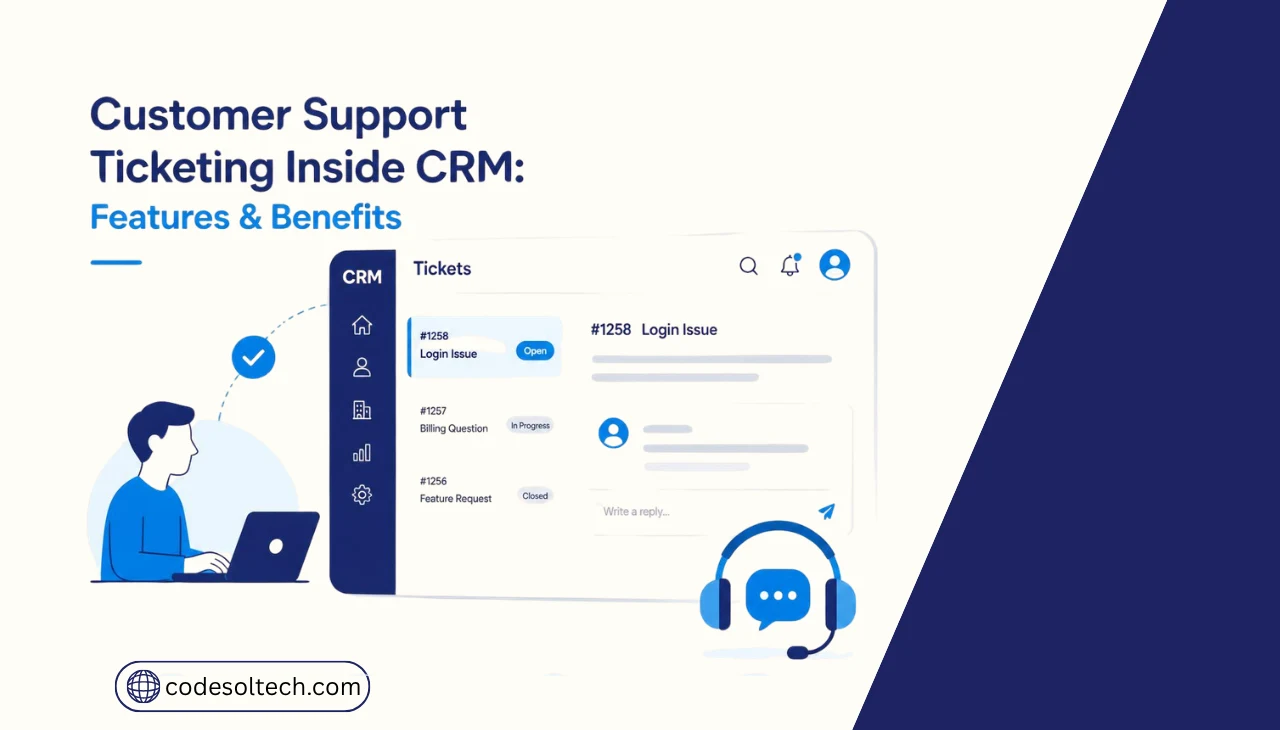
Customer support ticketing inside a CRM logs every customer request as a tracked ticket linked directly to that customer’s record. The CRM stores the ticket alongside purchase history, past conversations, and account data. Agents resolve issues faster because they see the full customer context in one screen, not two separate systems.
Standalone help desk software stores tickets in a system disconnected from sales and account data. An agent working a standalone ticket often switches tabs to check the CRM for order history.
CRM ticketing removes that switch: the ticket, the purchase record, and the communication log sit in one interface.
Custom CRM development lets a business define exactly how ticket data links to sales, billing, and service records, instead of adapting workflows to a generic help desk schema.
Why Add Customer Support Ticketing to a CRM
Ticketing inside a CRM closes the gap between sales data and support data, so agents no longer request account details the CRM already has.
Salesforce’s State of Service research found 26% of service reps report they often lack context about a customer’s situation, and 80% say better access to other departments’ data would improve their work.
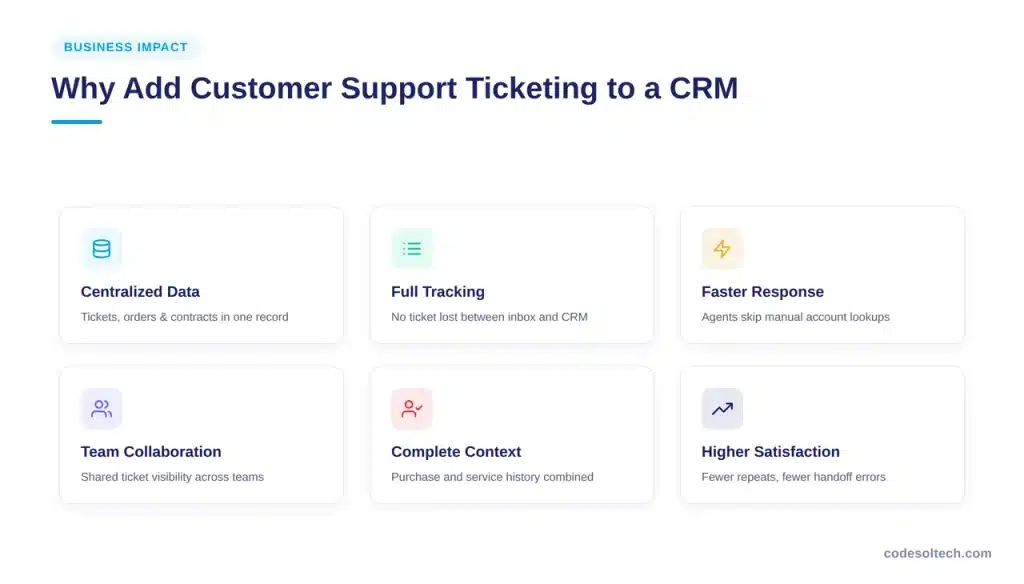
CRM ticketing delivers six operational gains:
- Centralized customer data — tickets, orders, and contracts in one record
- Full request tracking — no ticket lost between inbox, spreadsheet, and CRM
- Faster response times — agents skip manual account lookups
- Stronger team collaboration — shared ticket visibility across sales and support
- Complete customer context — purchase and service history in the same view
- Higher customer satisfaction — fewer repeated questions, fewer handoff errors
The stakes are high. Zendesk’s CX Trends 2026 research reports that 85% of CX leaders say customers will drop a brand after a single unresolved issue, even on first contact.
How Does CRM Ticketing Work
A CRM ticket moves through six stages from creation to closure. The CRM automates most of these stages once an administrator configures the rules.
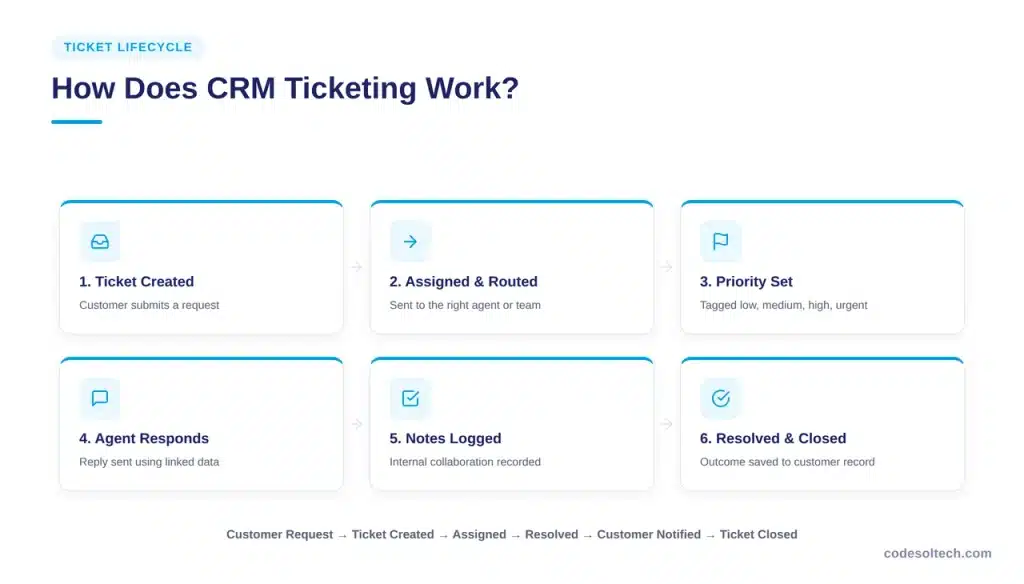
- Ticket creation — a customer submits a request by email, form, chat, or phone log
- Ticket assignment and routing — the CRM routes the ticket to an agent or team based on category, product, or customer tier
- Priority and status management — the CRM tags the ticket as low, medium, high, or urgent, and tracks status changes
- Agent response — the assigned agent replies using ticket data and linked customer history
- Internal notes and collaboration — agents add private notes visible to teammates but not the customer
- Resolution and closure — the agent marks the ticket resolved and the CRM logs the outcome to the customer record
The basic workflow follows this sequence: Customer Request → Ticket Created → Assigned → Resolved → Customer Notified → Ticket Closed.
Businesses running high ticket volume across multiple products connect this workflow to workflow automation rules, which trigger the next action automatically instead of waiting on manual agent input at each stage.
Data Fields a CRM Support Ticket Should Include
A complete CRM ticket record contains ten data fields. Missing fields slow resolution because agents spend time searching for context instead of solving the issue.
- Customer name, contact details, and account ID
- Issue description and category
- Ticket status (open, pending, resolved, closed)
- Priority level
- Assigned agent or team
- Full communication history for the ticket
- Related purchases or active services
- Previous support tickets from the same customer
- Internal notes and escalation flags
- Resolution summary and closure timestamp
Customer Support Ticketing Features in CRM
A CRM ticketing module needs twelve core features to function as a complete support system rather than a basic inbox:
- Ticket creation and centralized management
- Automatic ticket assignment and routing rules
- Configurable priority levels
- Real-time status tracking
- SLA tracking with deadline alerts
- Email integration for ticket creation and replies
- Full customer communication history
- Internal notes separate from customer-facing replies
- Ticket categories and tags for reporting
- Automated status and assignment notifications
- Knowledge base integration for agent and customer self-service
- Reporting and analytics on ticket volume and performance
CRM Ticketing vs Standalone Help Desk
The core difference is data access. CRM ticketing inherits every customer record already stored in the CRM; a standalone help desk starts from a blank customer profile unless it is integrated separately.
| Feature | CRM Ticketing | Standalone Help Desk |
|---|---|---|
| Customer data | Connected to CRM | Often separate |
| Sales history | Easily accessible | Requires integration |
| Support history | Centralized | Centralized |
| Sales + support context | Combined in one record | Usually limited |
| Lead and customer workflows | Built in | Requires integration |
| Customer 360° view | Standard | Depends on platform |
A business already running both systems connects them through CRM integration rather than replacing either platform. Integration syncs ticket status and customer records both ways, closing most of the data gap without a full migration.
How to Set Up Customer Support Ticketing in a CRM
- Define support requirements — document ticket types, volume, and team structure
- Create ticket categories and statuses — map categories to products or services sold
- Connect support channels — link email, web forms, and chat for automatic ticket creation
- Configure assignment rules — route by category, customer tier, or agent workload
- Set priorities and SLAs — assign response-time targets per priority level
- Build automated workflows — trigger notifications, escalations, and follow-ups
- Train support teams — walk agents through the ticket lifecycle and note conventions
- Monitor and optimize — review metrics monthly and adjust routing rules
CRM Ticketing Automation Examples
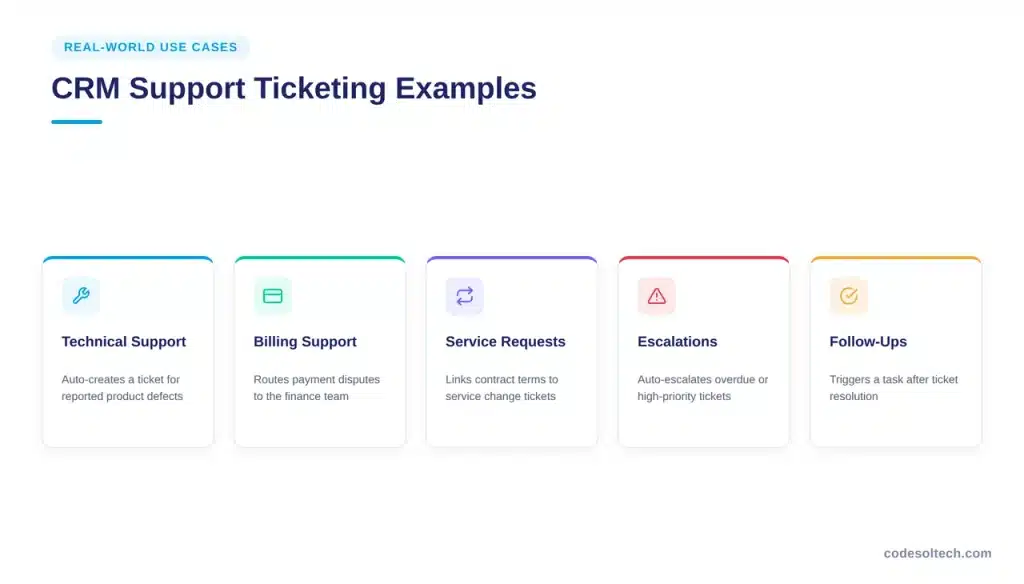
Automation removes manual steps from repetitive ticket actions. Seven automation rules cover most support workflows:
Auto-Assign Tickets
The CRM matches each incoming ticket to an agent based on category, product line, or current workload. Round-robin and skills-based routing rules stop any single agent from absorbing the full queue, and reassignment triggers automatically when an agent goes offline or hits capacity.
Instant Agent Notifications
The CRM pushes a real-time alert to the assigned agent’s dashboard, email, or connected messaging app the moment a ticket enters their queue. This removes the delay of agents manually refreshing ticket lists and shortens the gap between ticket creation and the first agent action.
SLA Escalation
The CRM tracks the SLA countdown on every open ticket and automatically reassigns it to a senior agent or supervisor the moment the deadline passes. The system also flags the account manager on record, so overdue requests never sit unnoticed in a shared queue.
Automatic Confirmation Emails
The CRM sends an immediate confirmation email the moment a ticket is logged, including a reference number and expected response window. This acknowledgment reassures the customer their request was received, even before an agent opens the ticket to write a full reply.
Automatic Status Updates
The CRM changes ticket status automatically based on triggers such as an agent reply, a customer response, or a set period of inactivity. This keeps status fields accurate without manual updates, so reporting dashboards always reflect the true state of every open ticket.
Follow-Up Task Creation
The CRM generates a follow-up task a set number of days after a ticket closes, prompting an agent to confirm the fix held. This step catches issues that resurface after the initial resolution and closes the loop before the customer has to reopen the ticket.
Satisfaction Surveys
The CRM sends a short satisfaction survey automatically the moment a ticket closes, capturing feedback while the interaction is still fresh. The response links back to the ticket record and the agent who handled it, feeding directly into performance and CSAT reporting.
Businesses handling high inbound volume often connect these rules to chatbot integration, which creates and pre-categorizes tickets from chat conversations before an agent ever opens the queue.
Common CRM Ticketing Mistakes
- Poor ticket categorization that misroutes requests
- Assignment rules that ignore agent workload or expertise
- Incomplete customer information pulled into the ticket
- No SLA tracking, so overdue tickets go unnoticed
- Too many manual steps between ticket stages
- Weak integration with email, chat, or phone channels
- No regular review of ticket performance data
How to Measure CRM Support Ticketing Performance
SuperOffice’s Customer Service Benchmark Report, a study of 1,000 companies, found the average email first response time across industries is 12 hours and 10 minutes, and 62% of companies do not respond to customer service emails at all. Eight metrics catch that gap before it costs a customer:
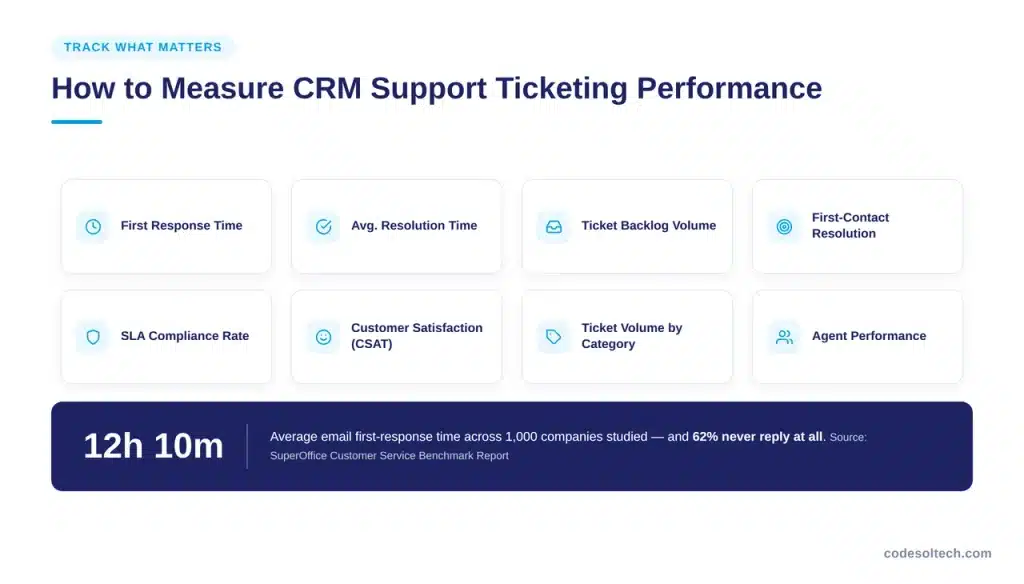
- First response time
- Average resolution time
- Ticket backlog volume
- First-contact resolution rate
- SLA compliance rate
- Customer satisfaction score (CSAT)
- Ticket volume by category
- Agent performance by ticket count and resolution speed
When Should You Build Custom CRM Ticketing
Build custom CRM ticketing when standard modules cannot match the business’s routing logic, compliance requirements, or system integrations. Off-the-shelf ticketing fits standard workflows. Six situations require a custom build instead:
- Standard CRM ticketing does not match existing support workflows
- Routing requirements involve multiple conditional rules or teams
- Industry-specific compliance shapes how tickets are logged and stored
- Multiple systems must exchange ticket data in real time
- Customers need a branded self-service portal for ticket submission
- Reporting or automation needs exceed what the CRM vendor offers natively
A custom software development approach builds the ticketing logic around the business’s exact workflow instead of forcing the workflow to fit a template.
FAQs
What is ticketing in a CRM?
Ticketing in a CRM logs each support request as a tracked record linked to the customer’s CRM profile, including their purchase and communication history.
Can a CRM manage customer support tickets?
Yes. Most modern CRMs include a ticketing module, and custom-built CRMs support ticketing tailored to specific routing, SLA, and reporting needs.
What is the difference between CRM and help desk software?
CRM ticketing connects tickets directly to sales and account data. Standalone help desk software manages tickets separately unless integrated with the CRM.
Can CRM tickets be automated?
Yes. CRMs automate assignment, status updates, escalation, and follow-up tasks based on rules the administrator configures.
Can customers create tickets directly?
Yes, through a self-service portal, web form, or chatbot connected to the CRM, which creates and categorizes the ticket automatically.
How does CRM ticketing improve customer service?
It gives agents full customer context in one screen, cutting response time and reducing the repeated questions caused by disconnected systems.
Can ticketing be added to a custom CRM?
Yes. A custom CRM build includes ticketing as a core module designed around the business’s categories, routing rules, and SLA structure.
What metrics should businesses track?
First response time, resolution time, SLA compliance, first-contact resolution rate, and CSAT most directly measure ticketing performance.
Final Words
CRM ticketing turns scattered support requests into tracked, routed, and measured records tied to real customer data. It cuts response time, reduces missed tickets, and gives agents the context they need on the first reply. Businesses with complex routing or compliance needs get the most value from a custom-built system.
Build CRM Ticketing Around Your Support Workflow
CodeSolTech builds custom CRM ticketing with the routing rules, SLA tracking, and integrations your support team needs.
Talk to Our CRM Development Team
You May Like
SMS Integration for CRM Systems: Automate Sales & Follow-Ups
CRM Email Automation Explained: Stop Losing Leads to Slow Replies